Yeelight
Yeelight has a complete smart home lighting product line, covering home lighting series, desk lighting series, ambient lighting series and smart control series. Combining cutting-edge technology and beautiful design has always been Yeelight’s pursuit. AI technology, BLE MESH technology, and whole-house smart lighting technology are widely applied in its products, and all Wi-Fi products support smart voice control; lighting changes are all in your words.
LAN Control
Yeelight supports Google Assistant and Amazon Alexa smart voice control. It also supports IFTTT, which is rarely supported domestically. It can better link with social media, smart hardware and various network services. Later we will explain the relevant applications of IFTTT. In addition, Yeelight also launched a third-party control protocol for technology enthusiasts, which can achieve personalized control within the LAN. The mPython Board controlling Yeelight smart lighting devices explained in this article uses this protocol.
Yeelight third-party control protocol: https://www.yeelight.com/download/Yeelight_Inter-Operation_Spec.pdf
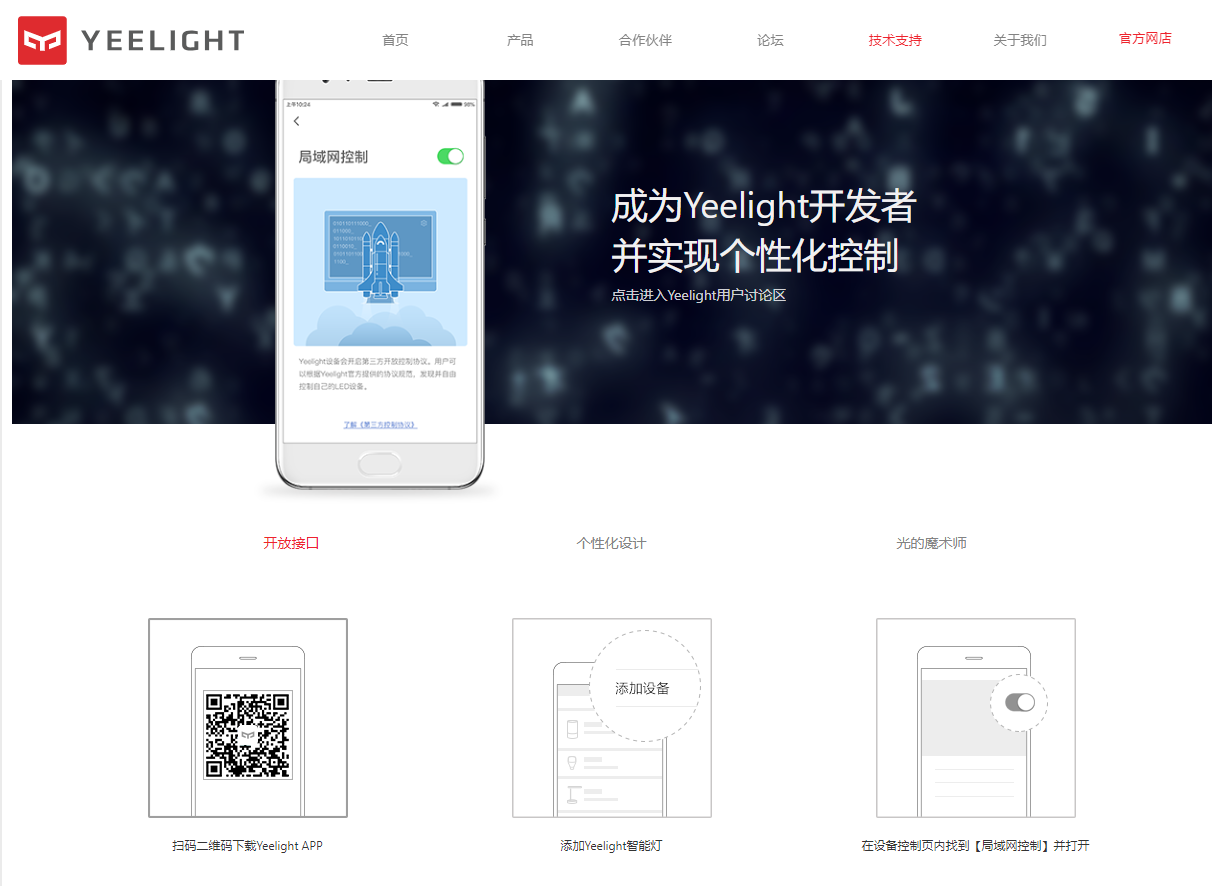
Yeelight LAN control
Preparation
First we need a Yeelight smart lighting device. According to Yeelight’s official statement, all Wi-Fi lighting devices on the market and subsequent Wi-Fi products will support the LAN control protocol. I recommend the Yeelight LED bulb (color version), which is economical and can control colors.
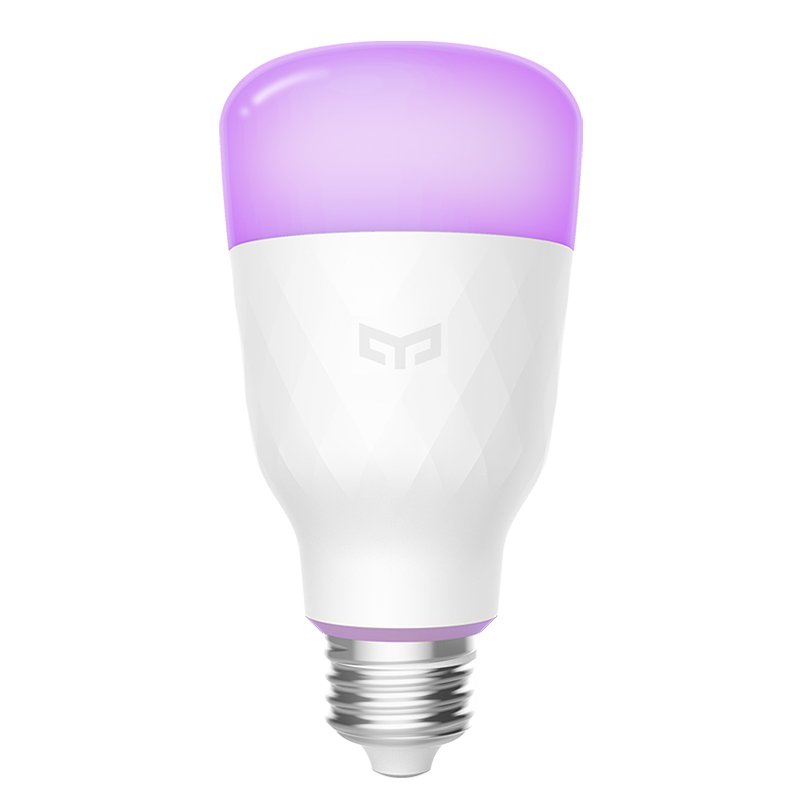
Yeelight LED bulb (color version)
Before using the YeeLight smart bulb, you must first use the YeeLight APP to configure and connect to Wi-Fi, and turn on the “LAN Control” function.

Yeelight configuration process
The mPython Board provides a
yeelightdriver library, which can be obtained at awesome-mpython/libary/yeelight. It contains more detailed API documentation for theyeelightmodule. Downloadyeelight.pyto the mPython Board’s file system.Connect the mPython Board to the same LAN as Yeelight.
Programming
Discovering Bulbs
After the mPython Board and the Yeelight bulb are in the same LAN, to control the bulb, we first need to know the bulb’s IP address. We can use the discover_bulbs() function:
from mpython import *                   # Import the mpython module
from yeelight import *                  # Import the yeelight module

my_wifi = wifi()                        # Connect to the same LAN as YeeLight
my_wifi.connectWiFi("ssid","password")


discover_bulbs()                        # Discover the device information of YeeLight in the LAN
The Yeelight bulbs in the network respond and return a dictionary containing the bulbs attribute:
>>> discover_bulbs()
[{'ip': '192.168.0.8', 'capabilities': {'rgb': '16711680', 'bright': '100', 'support': 'get_prop set_default set_power toggle set_bright start_cf stop_cf set_scene cron_add cron_get cron_del set_ct_abx set_rgb set_hsv set_adjust adjust_bright adjust_ct adjust_color set_music set', 'sat': '100', 'power': 'off', 'id': '0x0000000007e7544d', 'name': '', 'fw_ver': '26', 'color_mode': '2', 'hue': '359', 'ct': '3500', 'model': 'color'}, 'port': '55443'}]
The discover_bulbs() function can obtain the attributes of Yeelight devices in the network. From the return above, the bulb’s IP address is 192.168.0.8.
On/Off Control
After knowing the IP address, we build a Bulb object to control the bulb on and off:
bulb=Bulb("192.168.0.8")    # Build the object
bulb.turn_on()              # Turn on the light command
bulb.turn_off()             # Turn off the light command
In addition to turn_on() and turn_off(), you can also use toggle() to reverse the state.
Brightness Adjustment
bulb.set_brightness(100)
set_brightness(brightness), the brightness parameter is the brightness value, adjustable range 0~100.
Setting Colors
bulb.set_rgb(255,0,0)           # Set the bulb color via RGB
bulb.set_hsv(180,100)           # Set the bulb color via HSV
bulb.set_color_temp(1700)       # Set the bulb color temperature
The yeelight module provides two functions, set_rgb(red, green, blue) and set_hsv(hue, saturation). The two color models “RGB” and “HSV” are used to set the bulb light color. The RGB color model is more commonly used, and I believe you are not unfamiliar with it. It obtains all kinds of colors through the changes of the three color channels red (R), green (G), blue (B) and their superposition on each other.
HSV (Hue Saturation Value) color model: hue is the hue, measured in degrees, with a value range of 0~359, calculated counterclockwise starting from red; red is 0°, green is 120°, blue is 240°. saturation is the saturation, representing the degree to which the color approaches the spectral color. The higher the saturation, the deeper and more vivid the color. Range 0~100.
The Value brightness parameter is not supported. You only need to set the hue and saturation parameters. When making rainbow effects or color transitions, HSV is more natural.
You can also use the set_color_temp(degrees) function to set the bulb color temperature. degrees is the color temperature parameter, range 1700~6500.
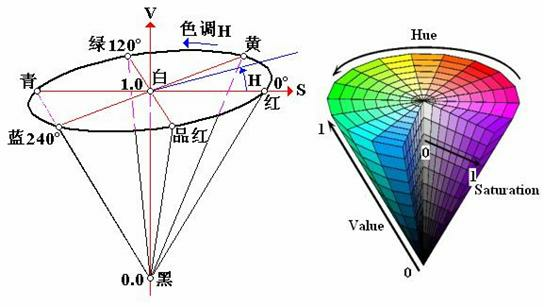
Yeelight HSV color model
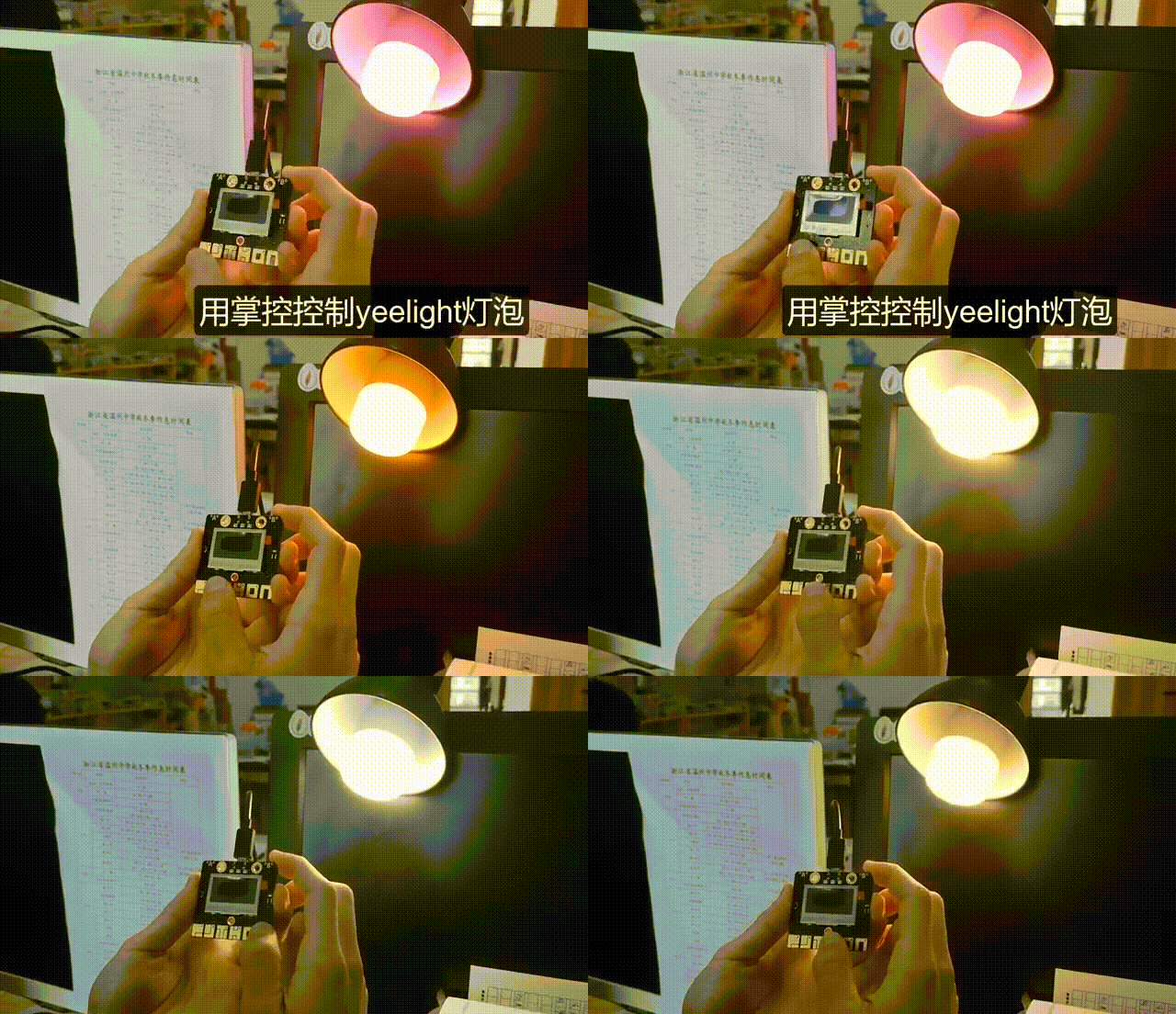
The mPython Board controlling Yeelight
Attention
Currently, Yeelight Wi-Fi smart devices support at most 4 simultaneous TCP connections. Connection attempts will be rejected. For each connection, there is a command message quota limit, that is, 60 commands per minute. All LANs also have a total quota limit of 144.