Serial Port
Serial Port Basics
Serial Port Principle
The English abbreviation for serial communication is UART (Universal Asynchronous Receiver Transmitter). It sounds like a complex concept, but as shown below, it is simply two devices connected by a wire. The sender converts data into a binary sequence at one end of the wire and transmits 0 and 1 signals in order using high and low voltage levels. The receiver reads the high and low level signals on the wire at the other end and converts them back into a binary 0/1 sequence. Asynchronous transceiving means full-duplex transmission, i.e. data can be sent and received simultaneously, just like a phone call where we can speak and hear the other person at the same time.
Whenever we want to communicate between a PC and an MCU or between two MCUs, the simplest method is to use UART. Transmitting data between two UARTs requires only two wires. Data flows from the Tx pin of the sending UART to the Rx pin of the receiving UART.
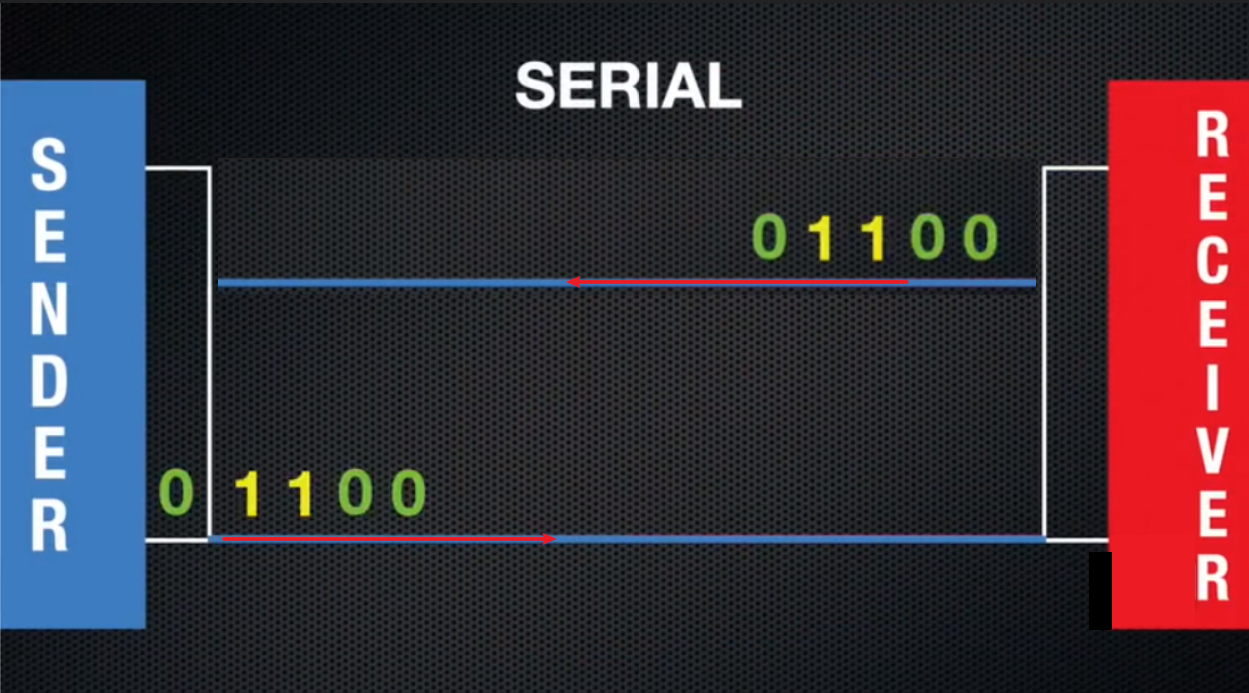
Serial communication principle diagram
Baud Rate
Baud rate refers to the number of bits transmitted per second in serial communication. In plain terms, it is how many 1s and 0s can be sent in one second. For example, a baud rate of 9600 means 9600 binary digits composed of 0s and 1s can be sent in 1 second.
Transmitter TX and Receiver RX
UART communication basically uses 2 pins for data transmission. Tx is the pin for sending data, Rx is the pin for receiving data. For two serial ports to communicate, at least three wires are needed.
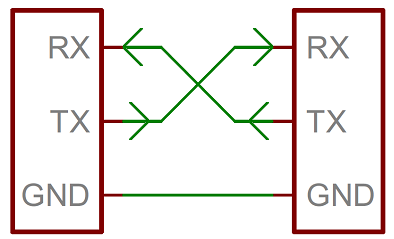
RX represents the data receiver, TX represents the data transmitter
Attention
If connecting a module that does not have its own power supply, VCC must also be connected!
Serial Port Operations
The following demonstrates serial communication between the mPython Board and a blue:bit Bluetooth slave module, ultimately enabling Bluetooth communication on the mPython Board.
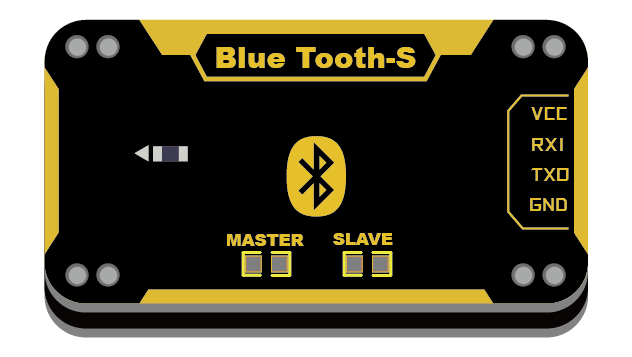
blue:bit Bluetooth module
Building a UART
from mpython import *                            # Import all mpython objects

uart=UART(1,baudrate=9600,tx=Pin.P15,rx=Pin.P16) # Build a UART object, set baud rate to 9600, TX and RX pins are P15 and P16 respectively
The HC06 (blue:bit Bluetooth slave module) has a default factory baud rate of 9600. So we set the baud rate to 9600 here when building the UART, so that communication can succeed later. Please set it according to the baud rate of the serial port you need to connect.
UART(id, baudrate, bits, parity, stop, tx, rx, rts, cts, timeout), id is the serial port number, which can be set to 1~2. The mPython Board supports 3 serial port groups. 0 is used for REPL. The baudrate parameter
is the baud rate, tx maps the transmit pin, rx maps the receive pin. All pins can serve as serial input RX, except P2, P3, P4 and P10 which are input-only. All other pins can theoretically serve as output TX. Generally only the above parameters need to be set; other parameters keep their defaults. For more UART parameters, see the machine.UART chapter.
Serial Port Transmit
You can use a Bluetooth-enabled computer or phone to download a Bluetooth debugging assistant and pair with the Bluetooth module. This enables communication between the mPython Board and the computer or phone.
After successful Bluetooth pairing, send byte data to the serial port:
>>> uart.write('hello,world!')
Then check with the serial assistant whether the data sent from the mPython Board is received. The uart.write(buf) function writes (sends) byte data to the serial port and returns the data length.
Serial Port Read
The mPython Board receives serial port data and displays it on the OLED screen:
from mpython import *                               # Import all mpython objects

uart=UART(1,baudrate=9600,tx=Pin.P15,rx=Pin.P16,timeout=200)    # Instantiate UART, set baud rate 9600, TX/RX mapped to P15/P16, timeout 200ms

while True:
    if(uart.any()):                     # When there is readable data in the serial port
        data = uart.readline()          # Read one line of data from the serial port
        print("received:",data)         # Print the received data
        print("Received:%s" %data.decode('utf-8'))     # Note: bytes need to be decoded to string
Now you can send data to the serial port via a serial assistant. When the mPython Board receives serial data, it prints and displays it on the OLED screen. In the while loop, uart.any() is polled to check whether there is readable data in the serial port; when there is data,
uart.readline() reads one line. Note that what the serial port receives is byte type; if passing to the OLED for display, decode() is needed to convert bytes to string.
Besides UART.readline() for reading data, you can also use UART.read(length) to read a specified length of data from the serial port.
Extensions
Now that you have learned how to use the serial port, you can enable communication between the mPython Board and other MCUs (Arduino), computers/phones, and electronic modules. The applications are much broader. Use your imagination to make good use of the serial port and create more interesting things!