10.1. Accessing the OneNET Cloud Platform via MQTT Protocol:1
With the development of the mobile Internet, MQTT, due to its open source and low power consumption, will make more contributions in the field of mobile message pushing. In the field of the Internet of Things, for the communication between sensors and servers and the collection of information, MQTT can be one of the solutions to consider. In the future, MQTT will enter all aspects of our lives. This article teaches everyone how to use the mPython Board with the MQTT protocol to access the OneNET platform and remotely control the RGB LED.
10.1.1. What is the MQTT Protocol
As early as 1999, Dr. Andy Stanford-Clark of IBM and Dr. Arlen Nipper of Arcom invented the MQTT (Message Queuing Telemetry Transport) technology. MQTT (Message Queuing Telemetry Transport) is an instant messaging protocol developed by IBM, which has the potential to become an important part of the Internet of Things. The protocol supports all platforms and can connect almost all networked items to the outside world. It is used as a communication protocol for sensors and actuators (such as connecting a house to the Internet via Twitter).
10.1.1.1. OneNET Platform Preparation
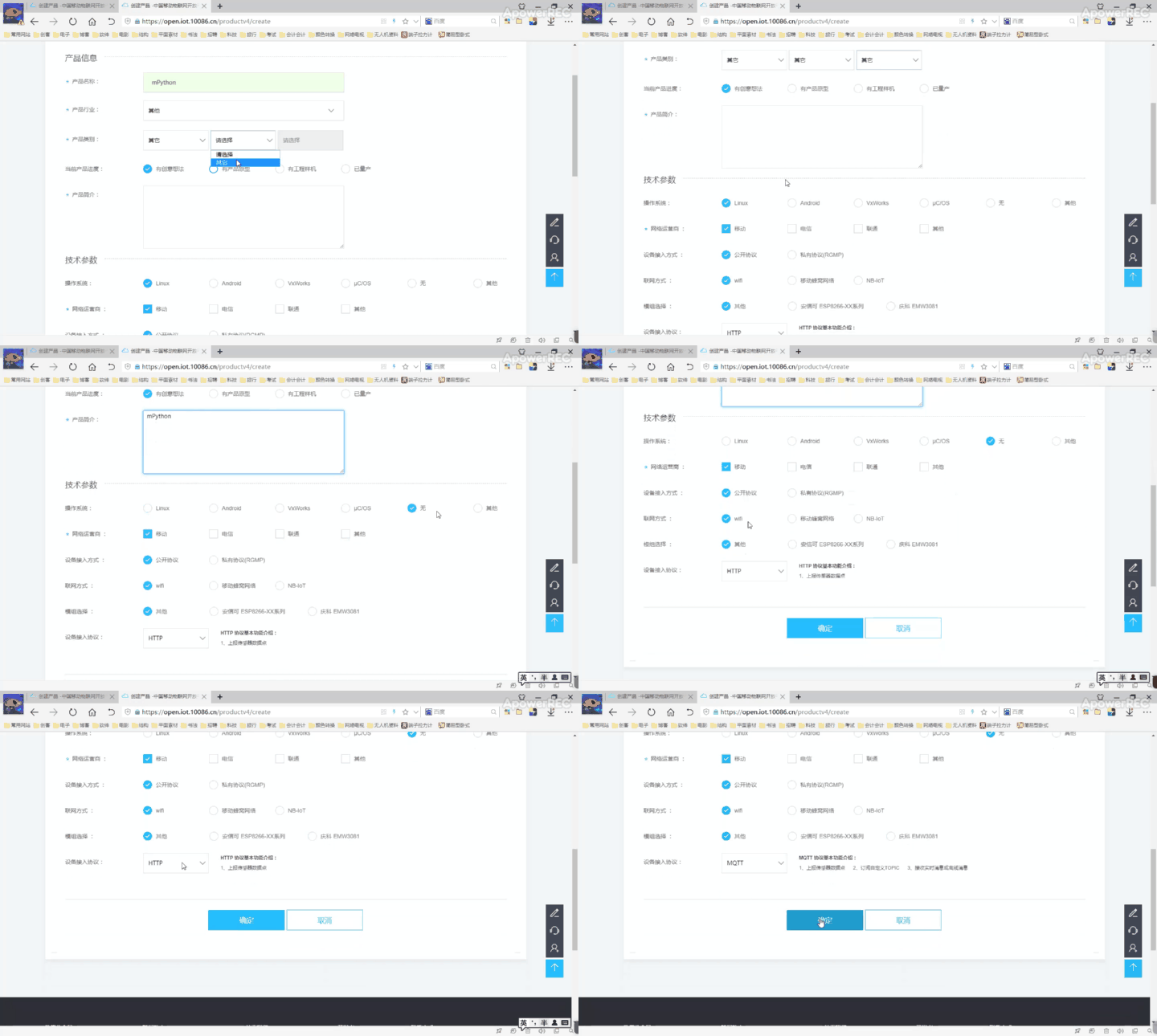
Create a product with the MQTT protocol on the OneNET platform and add a device. OneNET platform official website: https://open.iot.10086.cn/. After logging in successfully, enter the developer center and add a new product.
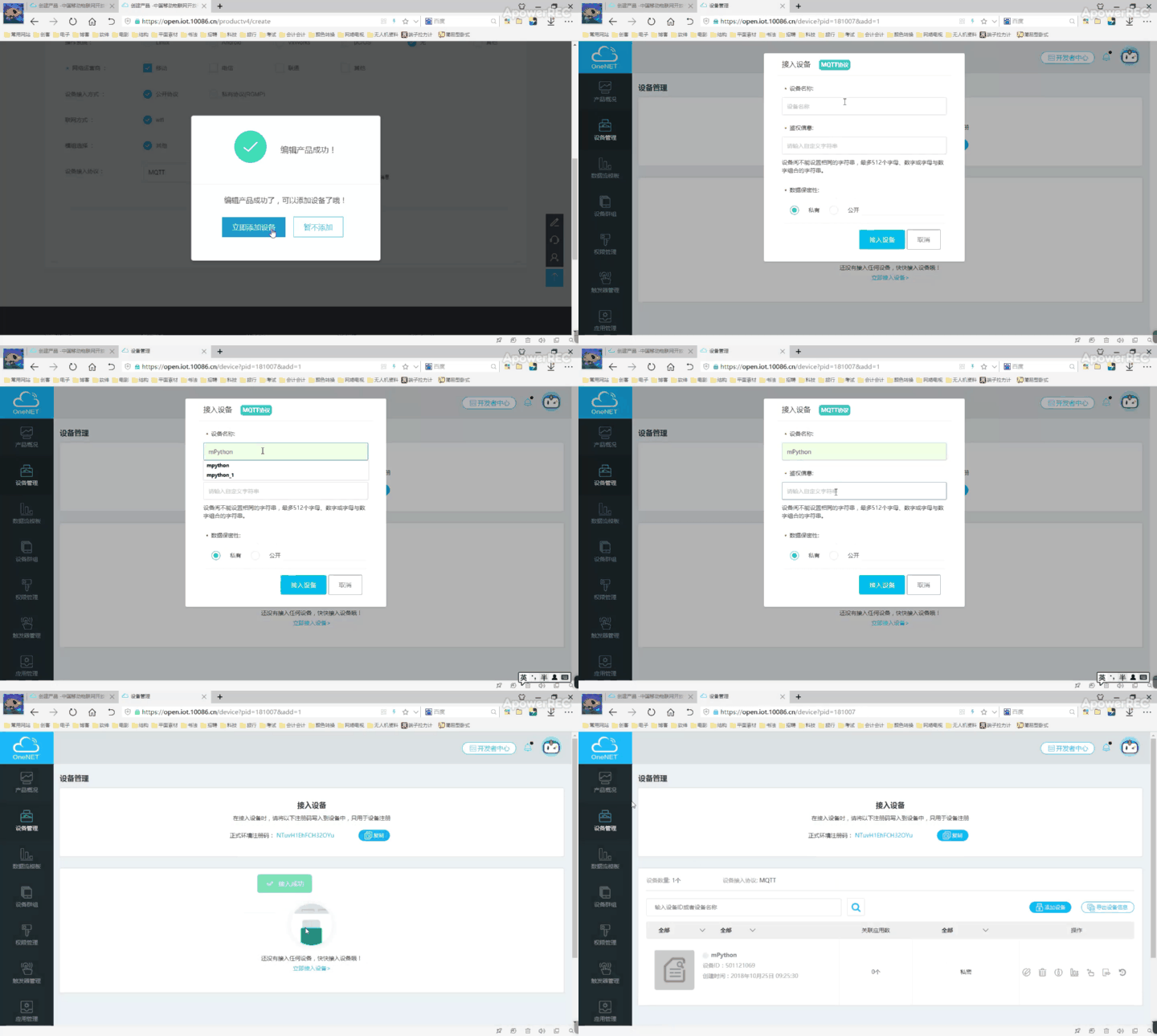
Create a new device mPython under the newly created product.
10.1.1.2. Writing the Program
Program example:
from umqtt.simple import MQTTClient
from mpython import *
from machine import Timer

# MQTT server address domain: 183.230.40.39, unchanged
SERVER = "183.230.40.39"
# Device ID
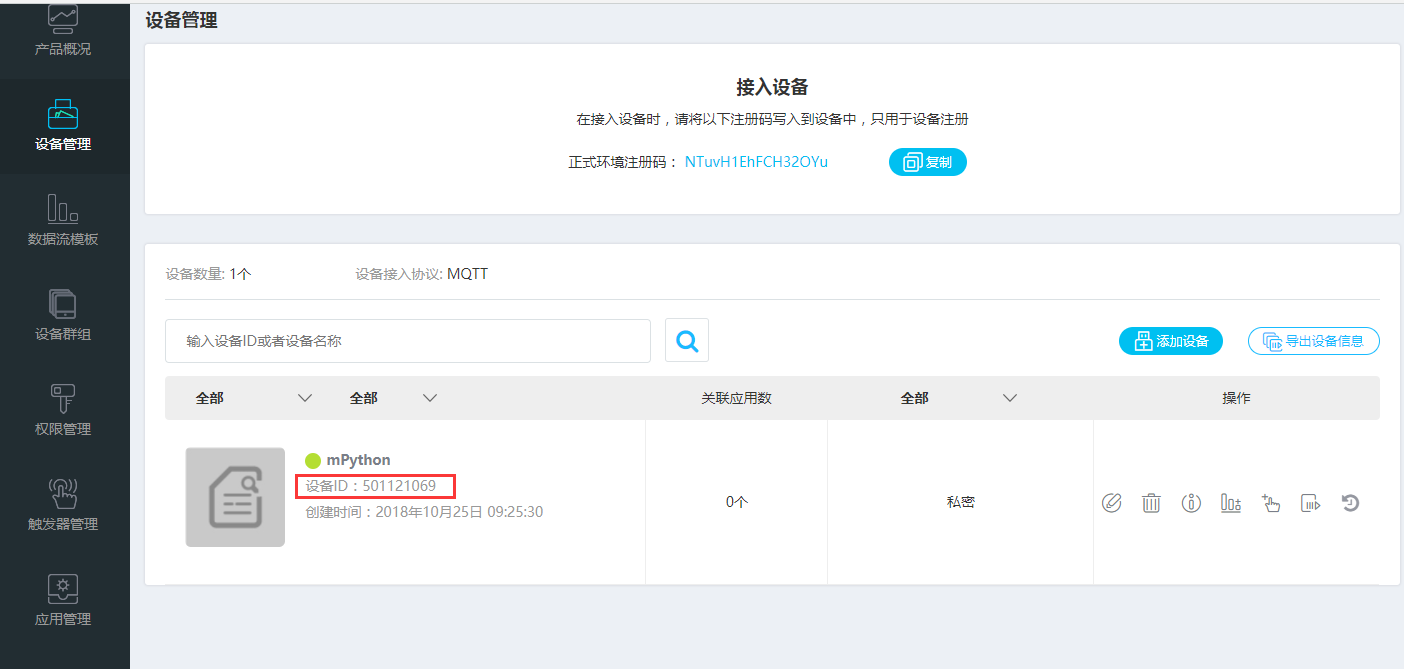
CLIENT_ID = "deviceID"
# Product ID
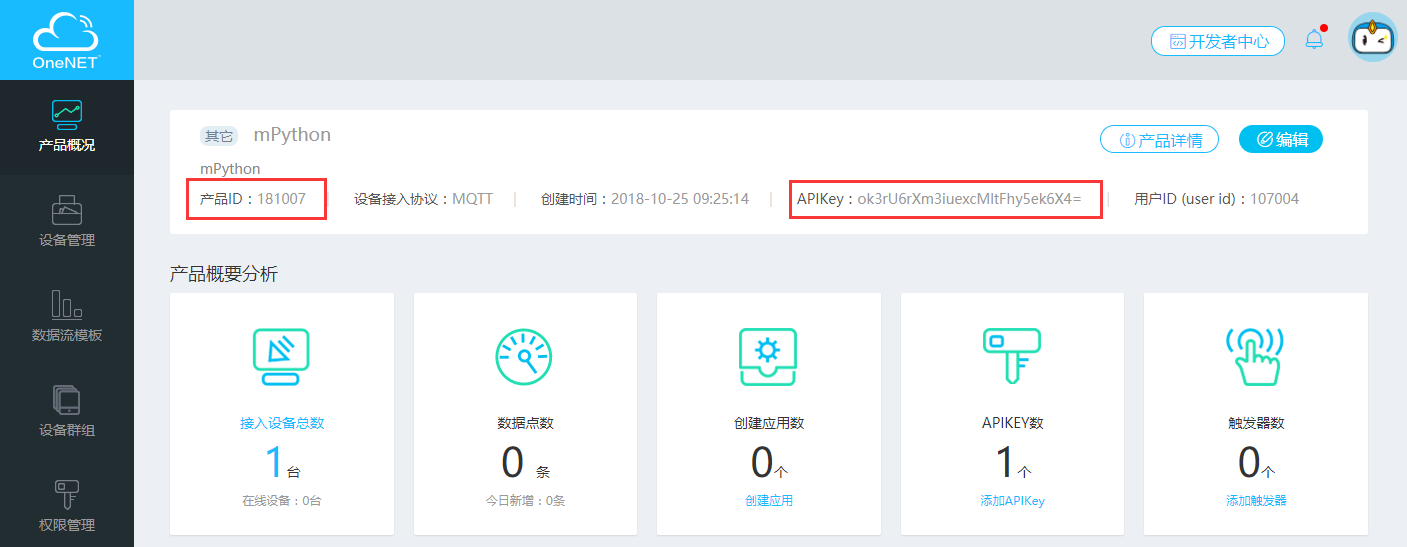
username='productID'
# Product APIKey:
password='APIKey'

mywifi=wifi()

def sub_cb(topic, msg):

    print((topic, msg))
    if msg == b"on":
        rgb.fill((50,0,0))       # Turn on the red light
        rgb.write()
    elif msg == b"off":        # Turn off the light
        rgb.fill((0,0,0))
        rgb.write()


def main(server=SERVER):
    # Port number: 6002
    c = MQTTClient(CLIENT_ID, server,6002,username,password,keepalive=10)    # Set the connection keep-alive interval to 10 seconds
    c.set_callback(sub_cb)
    c.connect()
    tim1 = Timer(1)           # Create timer 1
    tim1.init(period=2000, mode=Timer.PERIODIC,callback=lambda n:c.ping())   #  Send heartbeat packet to keep the connection
    print("Connected to %s" % server)
    try:
        while 1:
            c.wait_msg()
    finally:
        c.disconnect()

mywifi.connectWiFi("ssid","password")
main()
Hint
Modify the device ID, product ID, and APIKEY parameter information in the program, as shown below.
10.1.1.3. Effect Display
When we reset and restart the mPython Board, it starts running the program.
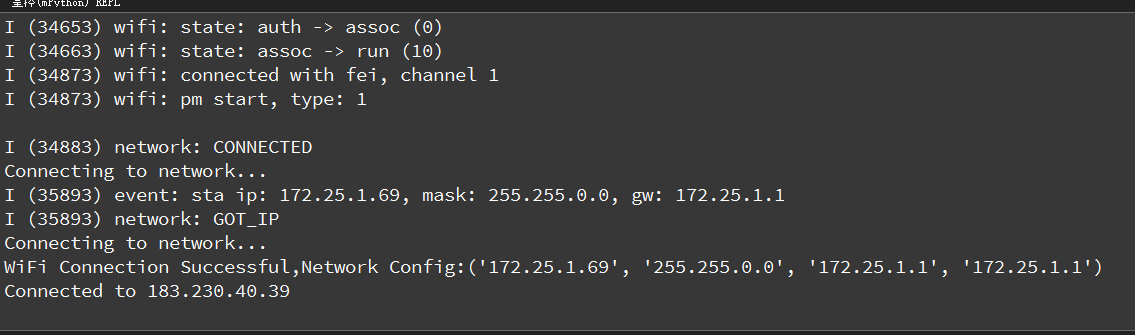
At this point, the device status light on the OneNET cloud platform shows green, indicating that it is online.

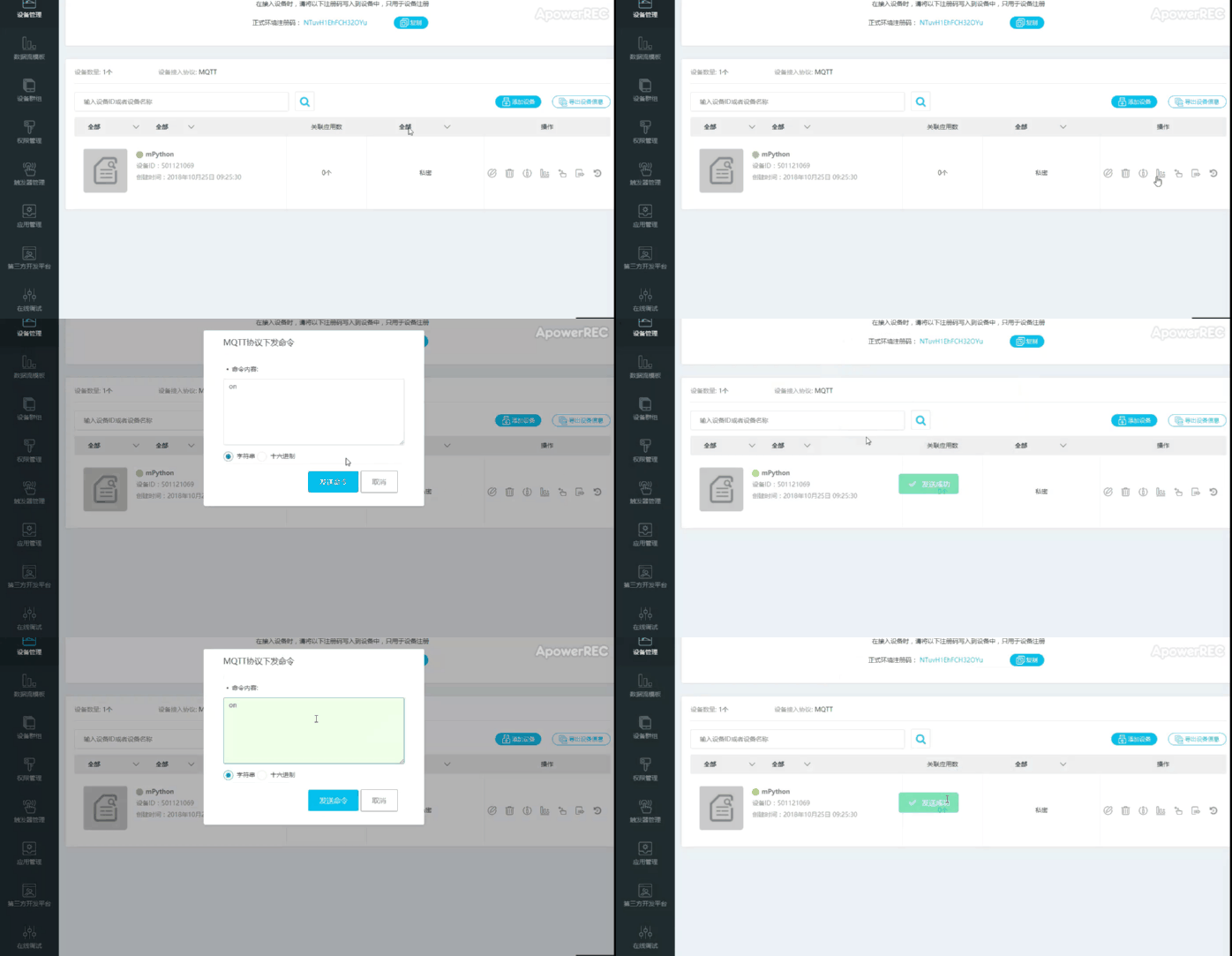
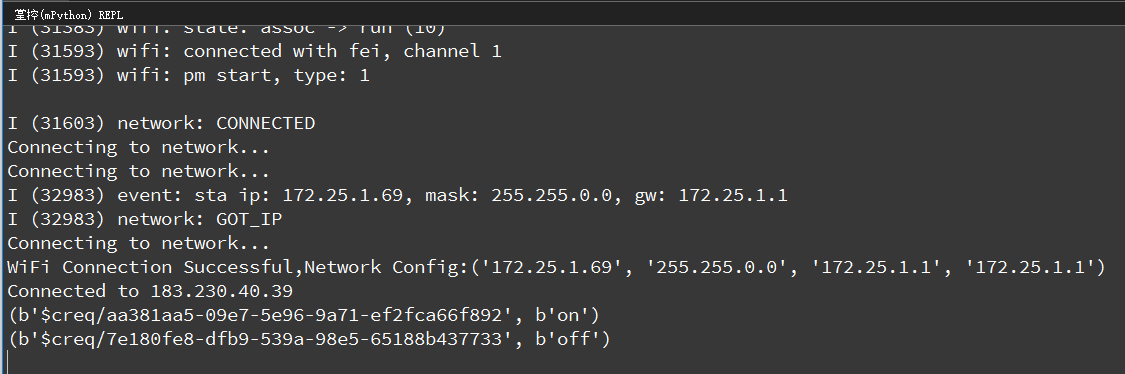
When we send the on and off commands through the page, we will see the received message printed at the terminal. The RGB LED on the mPython Board will also change accordingly.