Display
The mPython Board has a built-in 1.3-inch OLED display with a resolution of 128x64. It uses the Google Noto Sans CJK open-source sans-serif font. The font height is 16 pixels. It supports Simplified Chinese, Traditional Chinese, Japanese, and Korean languages.
Hint
oled is a derived class of machine.framebuf, so it inherits framebuf methods. For detailed usage, refer to framebuf().
Text Display
Before use, you must import the mpython module:
from mpython import *
hello,world text display:
# To see how characters are displayed on the screen, select the pixel inversion mode
oled.DispChar('hello,world!',0,0,mode=TextMode.rev)
# In default mode, character background pixels are off
oled.DispChar('hello,world!',0,16,mode=TextMode.normal)
oled.show()
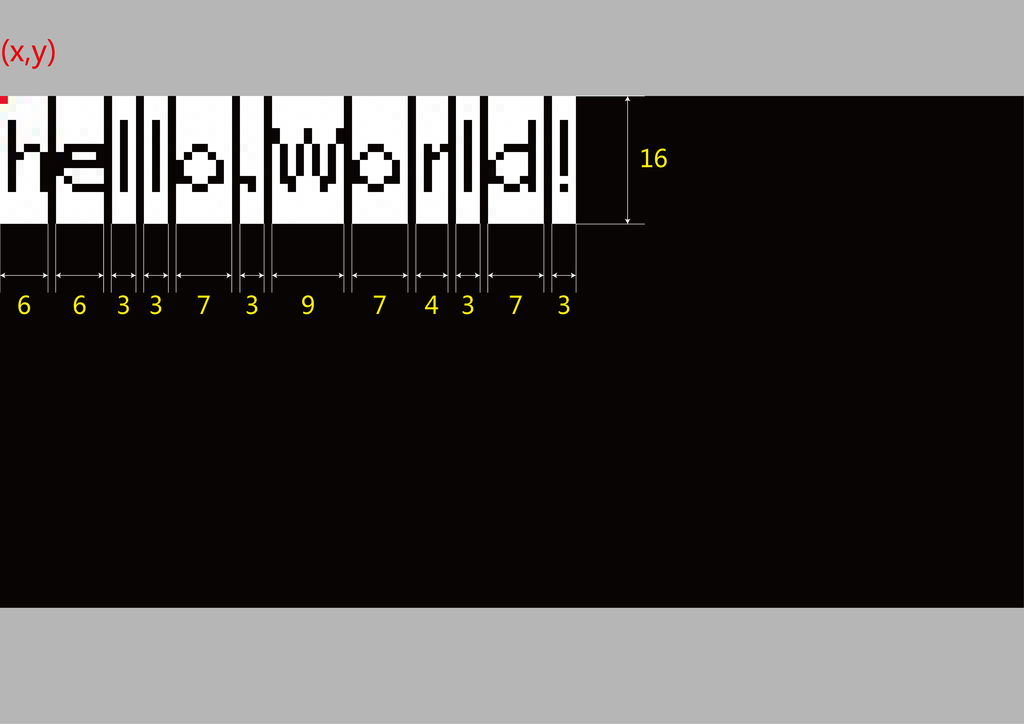
How character pixels are displayed on the mPython Board screen
The DispChar(str,x,y) function writes text with the top-left corner as the coordinate into the FrameBuffer.
stris the display text content, supporting Simplified Chinese, Traditional Chinese, Japanese, and Korean languages.xyare the starting xy coordinates for oled display. oled.show() sends the FrameBuffer to the oled for refresh and display.Uses Noto Sans CJK 16-pixel equal-height, variable-width font. Different characters have different widths, as shown in the figure above.
1from mpython import *
2
3oled.DispChar('Hello World', 38, 0)
4oled.DispChar('hello,world', 32, 16)
5oled.DispChar('안녕하세요', 35, 32)
6oled.DispChar('こんにちは', 24, 48)
7oled.show()
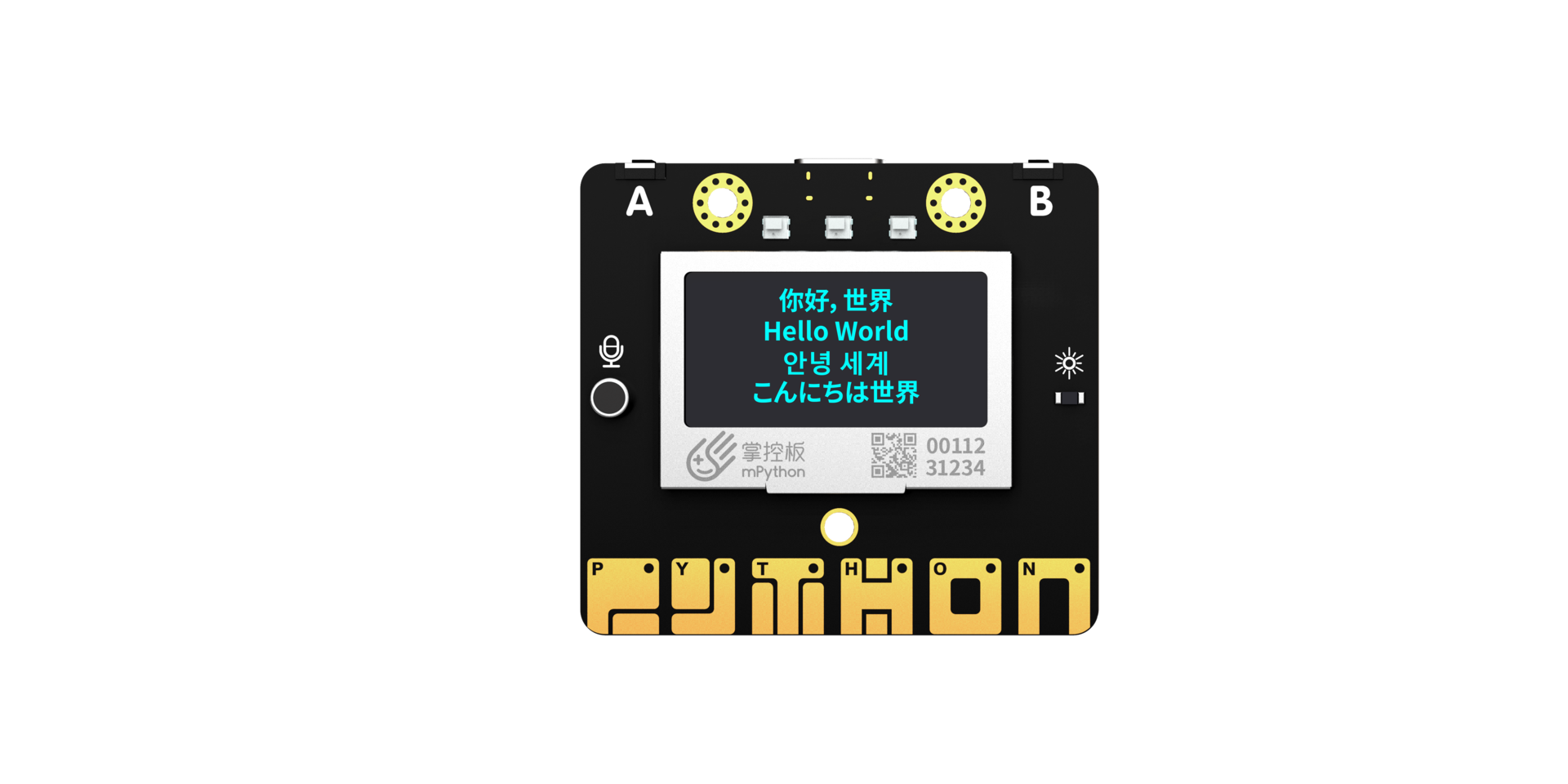
Multi-language hello,world display
oled.fill(0)
oled.show()
In addition to clearing the display, you can also light up all pixels on the screen:
oled.fill(1)
oled.show()
Note
fill() fills the entire FrameBuffer area.
The OLED display also supports setting screen brightness:
oled.contrast(brightness)
Note
brightness represents brightness, with a value range of 0~255.
Basic Shape Drawing
 1from mpython import *
 2import time
 3
 4def testdrawline():
 5    for i in range(0,64):
 6        oled.line(0,0,i*2,63,1)
 7        oled.show()
 8    for i in range(0,32):
 9        oled.line(0,0,127,i*2,1)
10        oled.show()
11    time.sleep_ms(250)
12    oled.fill(0)
13    oled.show()
14    for i in range(0,32):
15        oled.line(0,63,i*4,0,1)
16        oled.show()
17    for i in range(0,16):
18        oled.line(0,63,127,(64-4*i)-1,1)
19        oled.show()
20    time.sleep_ms(250)
21    oled.fill(0)
22    oled.show()
23    for i in range(1,32):
24        oled.rect(2*i,2*i,(128-4*i)-1,(64-2*i)-1,1)
25        oled.show()
26
27testdrawline()
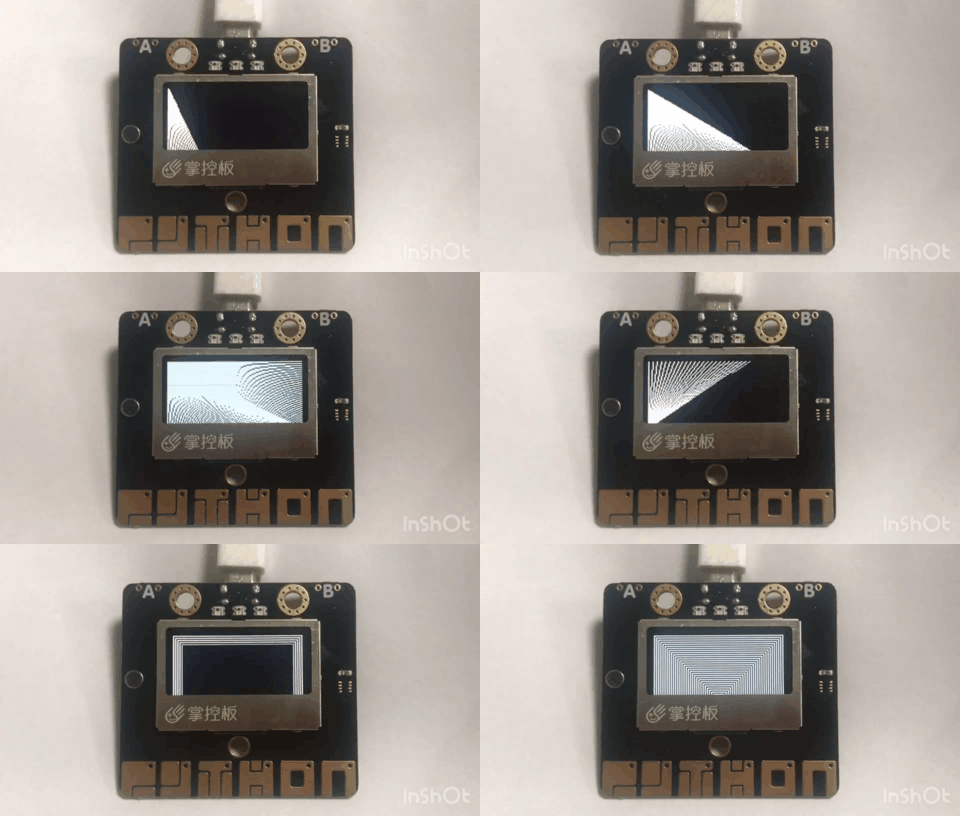
The OLED can draw shapes such as points, lines, and rectangles.
Pixel display:
oled.pixel(50,0,1)   #Set pixel (50,0) to 1, turning it on
oled.show()          #Refresh the display
Note
oled.pixel(x, y, [c]) can display a pixel. x, y are the point coordinates (x,y). c is the color value; when 1, the pixel is lit; when 0, it is off. If c is not given, the color value of the specified pixel is returned.
If c is given, the specified pixel is set to the given color.
Drawing lines:
oled.hline(0,1,20,1)  #Draw a horizontal line, starting at (0,1), length 20
oled.show()
oled.vline(10,10,20,1)  #Draw a vertical line, starting at (10,10), length 20
oled.show()
oled.line(15,15,80,20,1)  #Draw a line from (15,15) to (80,20)
oled.show()
Note
oled.hline(x, y, w, c) draws a horizontal line.
x,yare the point coordinates (x,y),wis the line width,cis the color value.oled.vline(x, y, l, c) draws a vertical line, same as above.
oled.line(x1, y1, x2, y2, c) draws a line in any direction, from start coordinates (x1, y1) to end coordinates (x2, y2),
cis the color value.
Drawing hollow/filled rectangles:
oled.rect(60,25,30,25,1)   #Draw a rectangle starting at (60, 25), width 30, height 25
oled.show()
oled.fill_rect(100,25,20,25,1)   #Draw a filled rectangle starting at (100, 25), width 20, height 25
oled.show()
Note
oled.rect(x, y, w, h, c) draws a rectangle outline. Starting coordinates (x, y), width
w, heighth,cis the color value.oled.fill_rect(x, y, w, h, c) draws a filled rectangle, same method as rect(). Unlike rect() which only draws the outline.
Drawing rounded rectangles:
oled.RoundRect(40, 20, 50, 30, 5, 1)   #Draw a rounded rectangle starting at (40, 25), width 50, height 30, corner radius 5
oled.show()
Note
oled.RoundRect(x, y, w, h, r, c) draws a rounded rectangle. Starting coordinates (x, y), width w, height h, corner radius r, c is the color value.
For more OLED display operations and shape drawing, refer to oled object.
Displaying Images
First, we need to process the image to a size of 128*64, with a color depth of 1 (black and white mode) in bmp format. You can use Photoshop or other image processing software.
Next, use an image extraction tool to extract the image data. There are tools such as PCtoLCD and LCD image converter available online. The following uses the Img2Lcd tool.
Step 1. Import a 128x64 bmp format image
Step 2. Select parameters: output data type [C array], scan mode [horizontal scan], output grayscale [monochrome], width and height [128*64]
Step 3. Click save to automatically generate the extraction data.
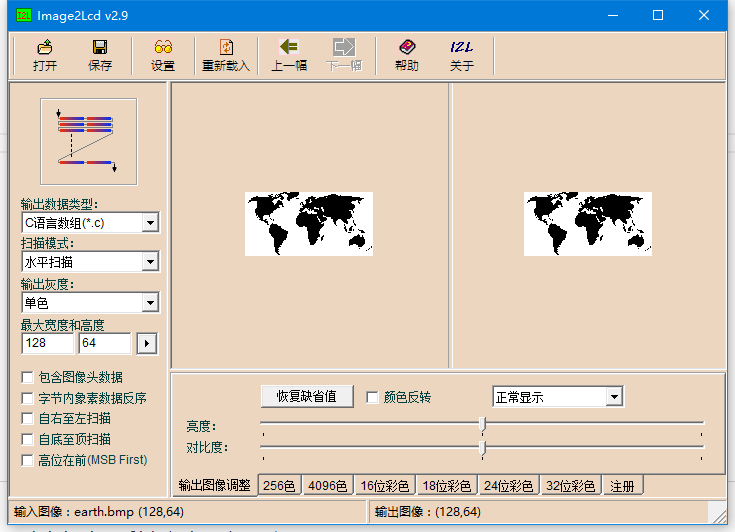
Assign the extraction data to the bmp array, then display it on the OLED screen.
 1from mpython import *
 2
 3# Image bitmap array
 4bmp = bytearray([\
 50X00,0X00,0X00,0X00,0X03,0XC7,0XFC,0X00,0X00,0X00,0X00,0X00,0X00,0X00,0X00,0X00,
 60X00,0X00,0X00,0X00,0X1E,0XFF,0XFC,0X00,0X00,0X00,0X00,0X00,0X00,0X00,0X00,0X00,
 70X00,0X00,0X00,0X31,0X70,0X3F,0XFC,0X00,0X00,0X00,0X03,0XE0,0X00,0X00,0X00,0X00,
 80X00,0X00,0X01,0XC2,0XB8,0X1F,0XF8,0X00,0X00,0X00,0X1F,0XF9,0X00,0X00,0X00,0X00,
 90X00,0X18,0X00,0XF2,0X7C,0X1F,0XF0,0X00,0X30,0X01,0XFF,0XFF,0XFF,0XE0,0X00,0X00,
100X00,0XFF,0XFF,0XEF,0XCE,0X3F,0X80,0X01,0XFE,0X3F,0XBF,0XFF,0XFF,0XFF,0XE0,0X00,
110X03,0XFF,0XFF,0XFF,0X1E,0X3E,0X1C,0X01,0XFC,0XFF,0XFF,0XFF,0XFF,0XFF,0XFE,0X00,
120X03,0XFF,0XFF,0XF8,0X0C,0X38,0X00,0X07,0XBF,0XFF,0XFF,0XFF,0XFF,0XFF,0XF8,0X00,
130X0F,0XFF,0XFF,0XF0,0X60,0X18,0X00,0X0F,0XBF,0XFF,0XFF,0XFF,0XFF,0XFE,0X70,0X00,
140X0C,0X0F,0XFF,0XE0,0XF8,0X00,0X00,0X07,0X9F,0XFF,0XFF,0XFF,0XFF,0XE0,0X40,0X00,
150X10,0X0F,0XFF,0XF0,0XF8,0X00,0X00,0XC7,0X3F,0XFF,0XFF,0XFF,0XFF,0XC0,0X60,0X00,
160X00,0X0F,0XFF,0XF9,0XFC,0X00,0X01,0X47,0XFF,0XFF,0XFF,0XFF,0XFF,0XE0,0X20,0X00,
170X00,0X0F,0XFF,0XFB,0XFC,0X00,0X01,0X6F,0XFF,0XFF,0XFF,0XFF,0XFF,0XF8,0X00,0X00,
180X00,0X0F,0XFF,0XFF,0XC4,0X00,0X00,0X3F,0XFF,0XFF,0XFF,0XFF,0XFF,0XFC,0X00,0X00,
190X00,0X0F,0XFF,0XFF,0XC6,0X00,0X00,0X7F,0XFF,0XFF,0XFF,0XFF,0XFF,0XFC,0X00,0X00,
200X00,0X0F,0XFF,0XFF,0XE0,0X00,0X00,0X3F,0XF9,0XF3,0XFF,0XFF,0XFF,0XFC,0X00,0X00,
210X00,0X1F,0XFF,0XFF,0X00,0X00,0X01,0XF2,0XF8,0X33,0XFF,0XFF,0XFF,0XF8,0X00,0X00,
220X00,0X3F,0XFF,0XFE,0X00,0X00,0X01,0XE1,0XBF,0XB9,0XFF,0XFF,0XFF,0XF0,0X00,0X00,
230X00,0X3F,0XFF,0XF8,0X00,0X00,0X03,0XC0,0XA7,0XF9,0XFF,0XFF,0XFF,0X10,0X00,0X00,
240X00,0X3F,0XFF,0XF0,0X00,0X00,0X01,0X8C,0X07,0XFD,0XFF,0XFF,0XFF,0XC8,0X00,0X00,
250X00,0X3F,0XFF,0XF0,0X00,0X00,0X00,0XFC,0X00,0XFF,0XFF,0XFF,0XFF,0XC8,0X00,0X00,
260X00,0X1F,0XFF,0XC0,0X00,0X00,0X03,0XFE,0X20,0XFF,0XFF,0XFF,0XFF,0XC0,0X00,0X00,
270X00,0X1F,0XFF,0X80,0X00,0X00,0X03,0XFF,0XFF,0XFF,0XFF,0XFF,0XFF,0XE0,0X00,0X00,
280X00,0X17,0XE0,0X80,0X00,0X00,0X07,0XFF,0XFF,0XFD,0XFF,0XFF,0XFF,0XE0,0X00,0X00,
290X00,0X07,0XC0,0X80,0X00,0X00,0X0F,0XFF,0XFF,0X7C,0X7F,0XFF,0XFF,0XE0,0X00,0X00,
300X00,0X0B,0XC0,0X00,0X00,0X00,0X0F,0XFF,0XFF,0X7F,0X83,0XFF,0XFF,0XD0,0X00,0X00,
310X00,0X01,0XC0,0X40,0X00,0X00,0X1F,0XFF,0XFF,0XBF,0XC3,0XFF,0XFF,0X80,0X00,0X00,
320X00,0X03,0XCC,0X28,0X00,0X00,0X1F,0XFF,0XFF,0X9F,0XC0,0XF8,0XFC,0X00,0X00,0X00,
330X00,0X00,0XF8,0X08,0X00,0X00,0X1F,0XFF,0XFF,0XDF,0X80,0XF0,0X7C,0X08,0X00,0X00,
340X00,0X00,0X1E,0X00,0X00,0X00,0X1F,0XFF,0XFF,0XCE,0X00,0XE0,0X3E,0X08,0X00,0X00,
350X00,0X00,0X0E,0X00,0X00,0X00,0X1F,0XFF,0XFF,0XF8,0X00,0X60,0X1E,0X08,0X00,0X00,
360X00,0X00,0X02,0X10,0X00,0X00,0X1F,0XFF,0XFF,0XF2,0X00,0X60,0X06,0X04,0X00,0X00,
370X00,0X00,0X03,0X3F,0X00,0X00,0X0F,0XFF,0XFF,0XFE,0X00,0X20,0X10,0X06,0X00,0X00,
380X00,0X00,0X00,0X7F,0X80,0X00,0X07,0XFF,0XFF,0XFE,0X00,0X10,0X10,0X02,0X00,0X00,
390X00,0X00,0X00,0X7F,0XF0,0X00,0X03,0XCF,0XFF,0XFC,0X00,0X00,0X08,0X30,0X00,0X00,
400X00,0X00,0X00,0X7F,0XF0,0X00,0X00,0X03,0XFF,0XF8,0X00,0X00,0X18,0X60,0X00,0X00,
410X00,0X00,0X00,0XFF,0XF8,0X00,0X00,0X03,0XFF,0XF0,0X00,0X00,0X18,0XE0,0X00,0X00,
420X00,0X00,0X00,0XFF,0XFE,0X00,0X00,0X03,0XFF,0XE0,0X00,0X00,0X0C,0XE8,0X40,0X00,
430X00,0X00,0X00,0XFF,0XFF,0X80,0X00,0X03,0XFF,0XE0,0X00,0X00,0X0C,0XE8,0X3C,0X00,
440X00,0X00,0X00,0XFF,0XFF,0XE0,0X00,0X01,0XFF,0XC0,0X00,0X00,0X04,0X00,0X0E,0X00,
450X00,0X00,0X00,0XFF,0XFF,0XE0,0X00,0X01,0XFF,0XC0,0X00,0X00,0X01,0XC0,0X0F,0X00,
460X00,0X00,0X00,0X7F,0XFF,0XE0,0X00,0X01,0XFF,0XC0,0X00,0X00,0X00,0X00,0X00,0X00,
470X00,0X00,0X00,0X3F,0XFF,0XC0,0X00,0X01,0XFF,0XE0,0X00,0X00,0X00,0X00,0X40,0X00,
480X00,0X00,0X00,0X3F,0XFF,0XC0,0X00,0X01,0XFF,0XE2,0X00,0X00,0X00,0X00,0XE4,0X00,
490X00,0X00,0X00,0X1F,0XFF,0XC0,0X00,0X01,0XFF,0XE6,0X00,0X00,0X00,0X07,0XE4,0X00,
500X00,0X00,0X00,0X0F,0XFF,0XC0,0X00,0X01,0XFF,0X8C,0X00,0X00,0X00,0X0F,0XFE,0X00,
510X00,0X00,0X00,0X07,0XFF,0X80,0X00,0X01,0XFF,0X0C,0X00,0X00,0X00,0X1F,0XFE,0X00,
520X00,0X00,0X00,0X07,0XFF,0X80,0X00,0X00,0XFF,0X8C,0X00,0X00,0X00,0X7F,0XFF,0X00,
530X00,0X00,0X00,0X07,0XFE,0X00,0X00,0X00,0XFF,0X08,0X00,0X00,0X00,0XFF,0XFF,0X00,
540X00,0X00,0X00,0X07,0XFC,0X00,0X00,0X00,0XFE,0X00,0X00,0X00,0X00,0XFF,0XFF,0X00,
550X00,0X00,0X00,0X07,0XFC,0X00,0X00,0X00,0X7E,0X00,0X00,0X00,0X00,0XFF,0XFF,0X00,
560X00,0X00,0X00,0X07,0XF8,0X00,0X00,0X00,0X7C,0X00,0X00,0X00,0X00,0XFF,0XFF,0X00,
570X00,0X00,0X00,0X07,0XF8,0X00,0X00,0X00,0X78,0X00,0X00,0X00,0X00,0XF1,0XFE,0X00,
580X00,0X00,0X00,0X07,0XE0,0X00,0X00,0X00,0X00,0X00,0X00,0X00,0X00,0X80,0X7C,0X00,
590X00,0X00,0X00,0X07,0XF0,0X00,0X00,0X00,0X00,0X00,0X00,0X00,0X00,0X00,0X78,0X02,
600X00,0X00,0X00,0X03,0XC0,0X00,0X00,0X00,0X00,0X00,0X00,0X00,0X00,0X00,0X00,0X02,
610X00,0X00,0X00,0X03,0X80,0X00,0X00,0X00,0X00,0X00,0X00,0X00,0X00,0X00,0X20,0X08,
620X00,0X00,0X00,0X03,0XC0,0X00,0X00,0X00,0X00,0X00,0X00,0X00,0X00,0X00,0X00,0X10,
630X00,0X00,0X00,0X03,0X80,0X00,0X00,0X00,0X00,0X00,0X00,0X00,0X00,0X00,0X00,0X40,
640X00,0X00,0X00,0X03,0XC0,0X00,0X00,0X00,0X00,0X00,0X00,0X00,0X00,0X00,0X00,0X00,
650X00,0X00,0X00,0X01,0X80,0X00,0X00,0X00,0X00,0X00,0X00,0X00,0X00,0X00,0X00,0X00,
660X00,0X00,0X00,0X00,0XC0,0X00,0X00,0X00,0X00,0X00,0X00,0X00,0X00,0X00,0X00,0X00,
670X00,0X00,0X00,0X00,0X60,0X00,0X00,0X00,0X00,0X00,0X00,0X00,0X00,0X00,0X00,0X00,
680X00,0X00,0X00,0X00,0X00,0X00,0X00,0X00,0X00,0X00,0X00,0X00,0X00,0X00,0X00,0X00,
69])
70
71oled.bitmap(0, 0, bmp, 128, 64, 1)
72oled.show()         # Refresh the display
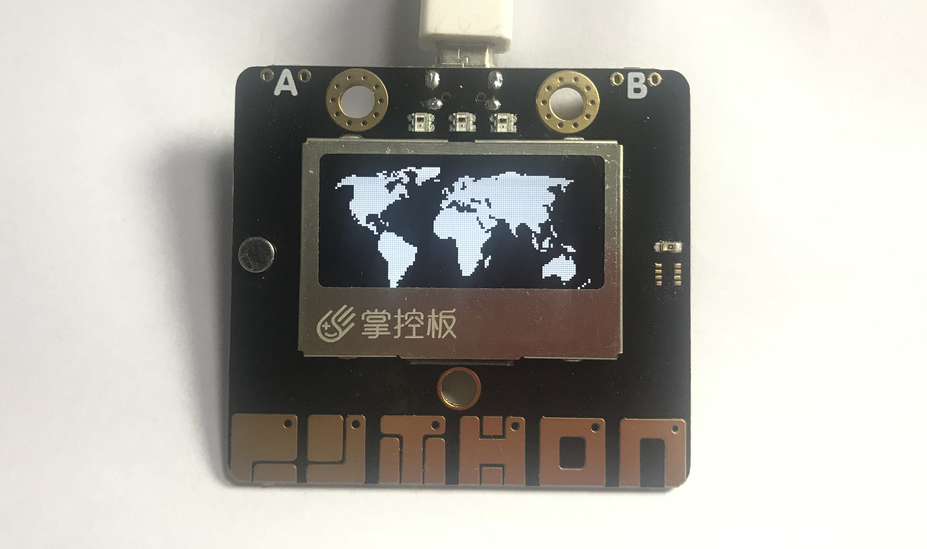
After assigning the extraction data to the bmp array, draw the image on the OLED display:
oled.bitmap(0, 0, bmp, 128, 64, 1)
oled.show()
Note
oled.bitmap(x, y, bitmap, w, h, c) can draw a bitmap image. x, y are the top-left starting coordinates. bitmap is the bytearray name of the image data. w is the image width, h is the image height, c is the color value; when 1, pixels are lit; when 0, pixels are off.
Dynamic Display
Combining the static frame display above, you can split the dynamic image into individual frames and send them to the OLED display frame by frame for an animation effect!
Unlike the bmp format images used above, this time we use pbm (Portable BitMap) format images. You can use Photoshop to convert to pbm format.
pbm data format:
P4
#CREATOR: GIMP PNM filter version 1.1
128 64
<data>
The first three lines of the pbm data format are defined as image annotations, followed by the image data. The first line indicates the image format, the second line is a comment (usually the program that created it), and the third line is the image size.
The remaining data is what we need. Data is stored as a bit stream per pixel, where 1 means the pixel is on and 0 means the pixel is off.
Dynamic display assets download
First, upload the pre-prepared pbm images for each frame to the root directory of the mPython Board’s file system.
 1from mpython import *
 2import framebuf,time
 3
 4
 5images = []
 6for n in range(1,7):
 7    with open('scatman.%s.pbm' % n, 'rb') as f:
 8        f.readline() # Magic number
 9        f.readline() # Creator comment
10        f.readline() # Dimensions
11        data = bytearray(f.read())
12    fbuf = framebuf.FrameBuffer(data, 128, 64, framebuf.MONO_HLSB)
13    images.append(fbuf)
14
15oled.invert(1)
16while True:
17    for i in images:
18        oled.blit(i, 0, 0)
19        oled.show()
20        time.sleep(0.1)
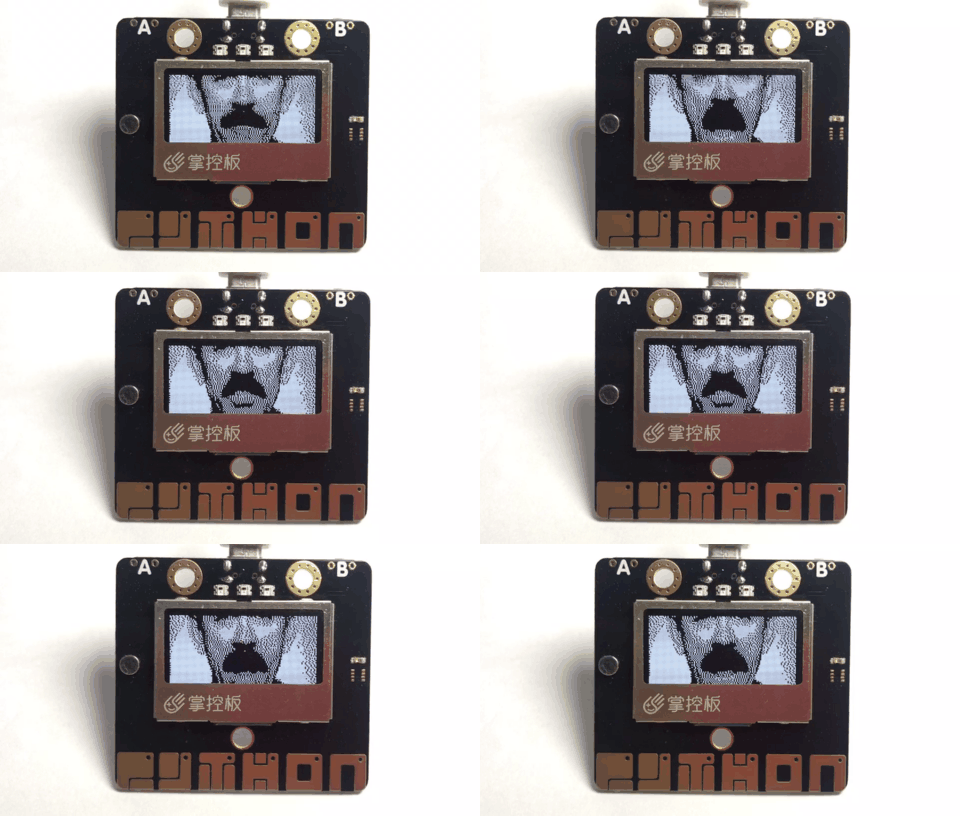
Import the mpython and framebuf modules:
from mpython import *
import framebuf
Open each frame image in binary read-only format:
with open('scatman.%s.pbm' % n, 'rb') as f:
    f.readline()       # Image format
    f.readline()       # Comment
    f.readline()       # Image size
    data = bytearray(f.read())
fbuf = framebuf.FrameBuffer(data, 128, 64, framebuf.MONO_HLSB)
images.append(fbuf)     #Assign each frame's data to the list
In the program, file.read() is used to read image data streams frame by frame. Note that the first three lines are not the data we need, so readlines() is used to discard them. A FrameBuffer object is created for each frame’s data stream, and all frames are cached in the images list.
Note
open(file, mode) is used to open a file and return a file object. file is the filename, mode is the file open mode. rb opens a file in binary format for read-only access, generally used for non-text files such as images.
Note
framebuf.FrameBuffer(buffer, width, height, format) can construct a frame buffer object. buffer is the buffer data, width is the image width, height is the image height, format is the FrameBuffer format, corresponding to the scan mode of the image extraction data output: framebuf.MONO_HLSB for horizontal direction; framebuf.MONO_VLSB for vertical direction.
Display the stored frame buffers frame by frame on the OLED screen:
oled.blit(i, 0, 0)
oled.show()
Note
oled.blit(fbuf, x, y) displays an image frame on the OLED. fbuf is the FrameBuffer object, x, y are the starting point coordinates.