4.2.1.2 Development Environment Setup
Installing VSCode
Download and install the latest version of VSCode from the official website: https://code.visualstudio.com/
Installing the PlatformIO Plugin
Open VSCode
Go to the Extensions Marketplace (shortcut Ctrl+Shift+X or click the Extensions icon on the left), search for “PlatformIO IDE” and install it.
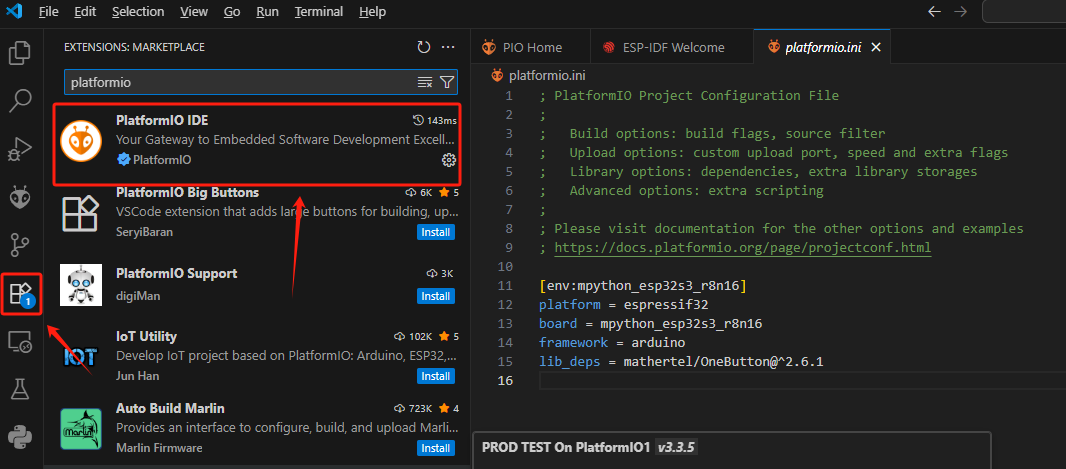
Restart VSCode after installation.
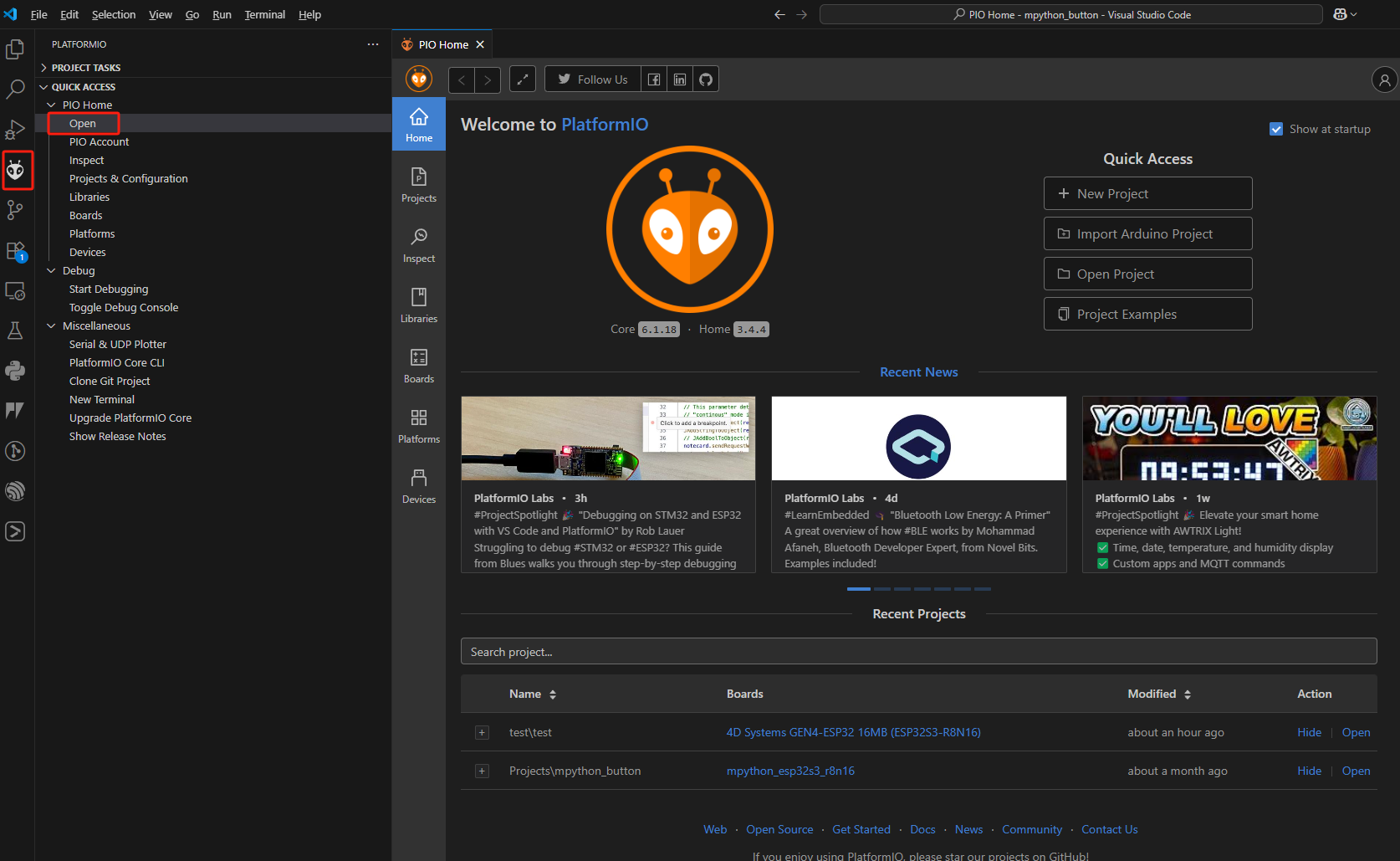
After installation, there will be a PlatformIO icon in the left sidebar. Click it to enter the development page.
Installing Python 3.7+
Download the installer
Visit the official website: https://www.python.org/downloads/, hover over the “Downloads” menu, and select the “Windows” menu item. Based on whether your system is 32-bit or 64-bit, select the package with “x86” or “x86-64” in the name. It is generally recommended to download the latest stable version.
Run the installer
Double-click the downloaded installation file. On the initial installation wizard screen, be sure to check the “Add Python 3.x to PATH” option, which will automatically configure environment variables. You can also click “Customize installation” for a custom installation, selecting installation components and path, then click “Install” to begin.
Verify installation
After installation, open the Command Prompt (CMD) and type “python” or “python -V”. If you can see the Python interactive interpreter start or the version number displayed, the installation was successful.
PlatformIO Configuration for mPython Board V3.0
Download
* mPython Board V3 PlatformIO configuration file
Extract the downloaded mpython_V3_for_platformio.rar file
Find and copy the mpython_esp32s3_r8n16.json file
Paste it into the C:/Users/[username]/.platformio/platforms/espressif32/boards directory
Find and copy the mpython_V3_ESP32S3 folder
Paste it into the C:/Users/[username]/.platformio/packages/framework-arduinoespressif32/variants directory
Note
Replace [username] with your Windows username. If you cannot find the corresponding folder, please refer to section 4.2.3 first and create an ESP32 project.