2.2 VSCode Programming Environment
2.2.1. VSCode Introduction
Visual Studio Code (VSCode) is a free, open-source, cross-platform (Windows/macOS/Linux) code editor developed by Microsoft, officially released in 2015. It is renowned for its lightweight design, high extensibility, and powerful development experience, widely used in front-end development, back-end programming, data analysis, DevOps and other scenarios, supporting almost all mainstream programming languages.
Multi-language support and intelligent hints
Natively supports JavaScript, TypeScript, Python, Java, C++ and other languages, extendable to more niche languages (such as Go, Rust, Kotlin, etc.) through plugins.
Built-in IntelliSense intelligent hint system, supporting code completion, syntax highlighting, function definition jumping, and even context-based code snippet recommendations.
Powerful plugin ecosystem
Thousands of plugins available through the VSCode Marketplace, covering code formatting (e.g., Prettier), debugging tools (e.g., Python Debugger), version control (e.g., GitLens), UI themes (e.g., Material Theme), etc.
Supports custom plugin development to meet personalized needs.
Integrated development experience
Built-in Git version control, allowing you to view commit history, compare code differences, and push/pull branches directly in the editor.
Supports multiple terminal integration, enabling command-line operations (e.g., npm install, git commit) without switching tools.
Built-in debugger supporting breakpoint debugging, variable monitoring, and call stack viewing, compatible with multiple programming languages.
2.2.2. Installing and Configuring VSCode
Download VSCode
Visit VSCode Official Website and select the version suitable for your operating system to download.
During installation, it is recommended to check the “Add to PATH” option so you can use VSCode directly from the command line.
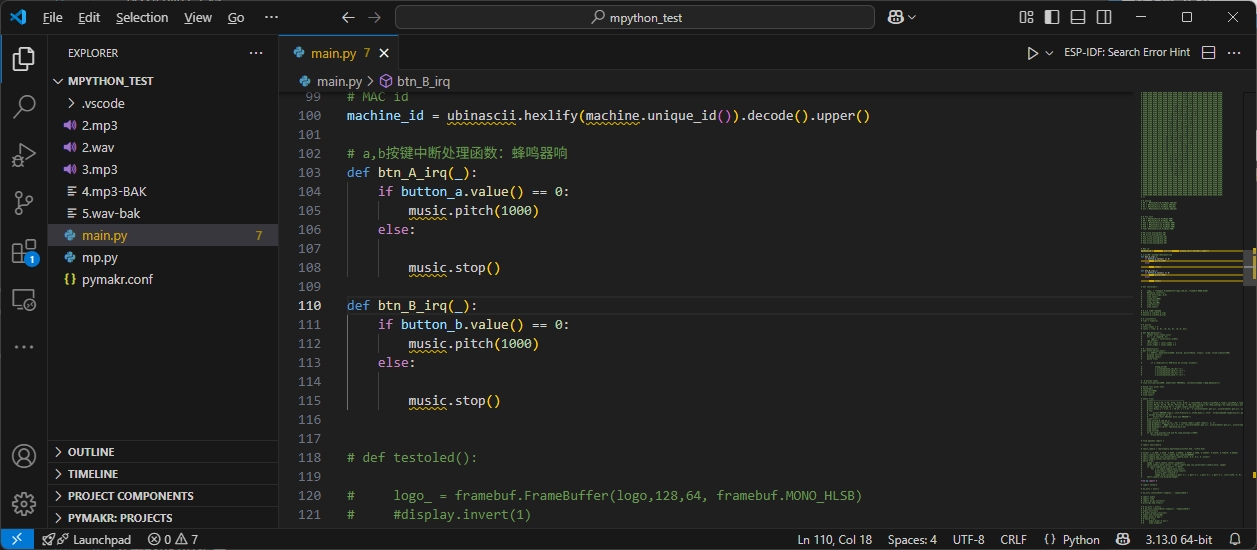
Install the Python Extension
Open VSCode, click the “Extensions” icon in the left activity bar, search for “Python” and install the “Python” extension.
After installation, VSCode will automatically detect the Python environment and provide intelligent hints, code formatting, and other features.
Install the ESP-IDF Extension